


Personio
Steps needed to integrating Personio with MuchSkills
How to
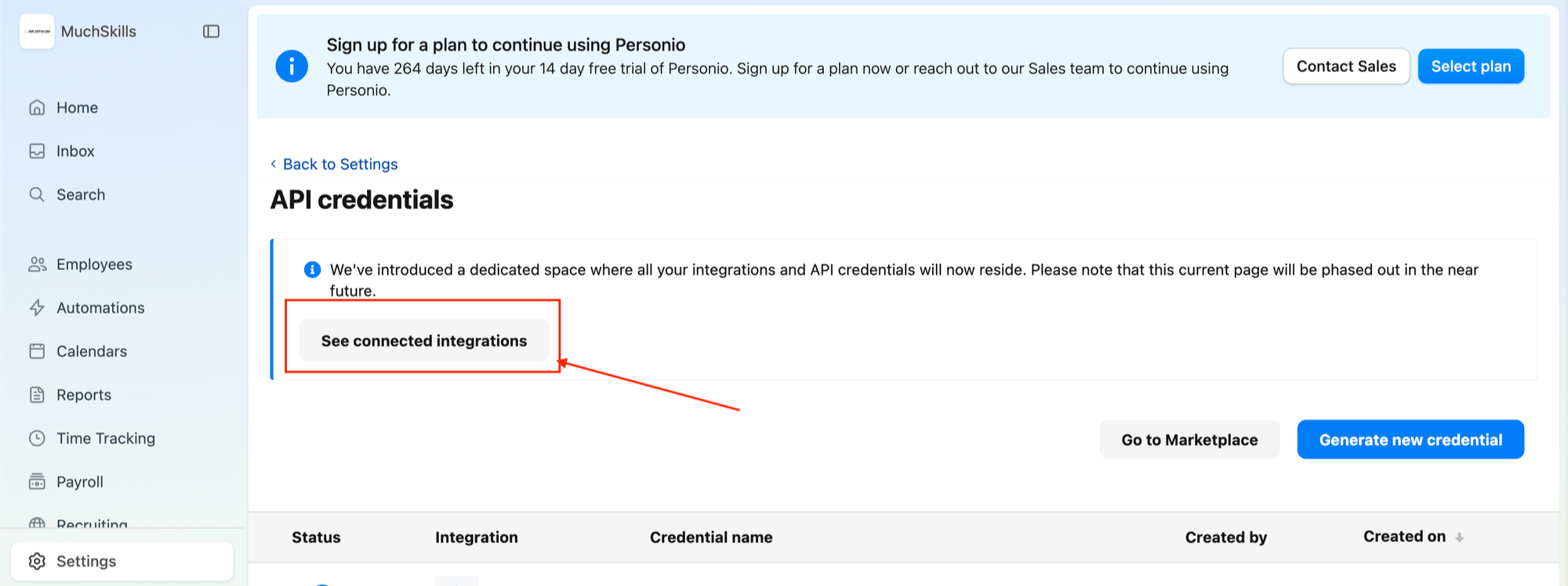
1. In Personio Settings, click the “See connected integrations” button.
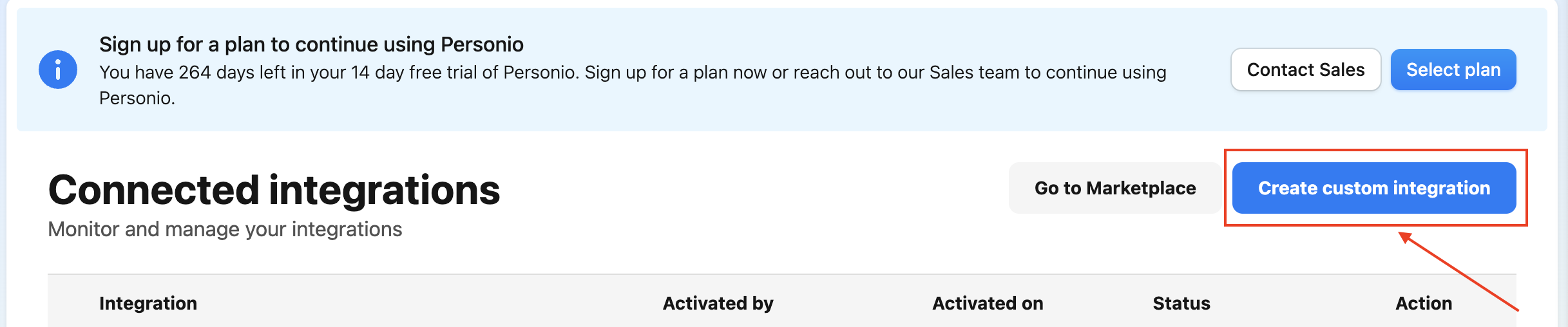
2. Click the “Create custom integration” button.
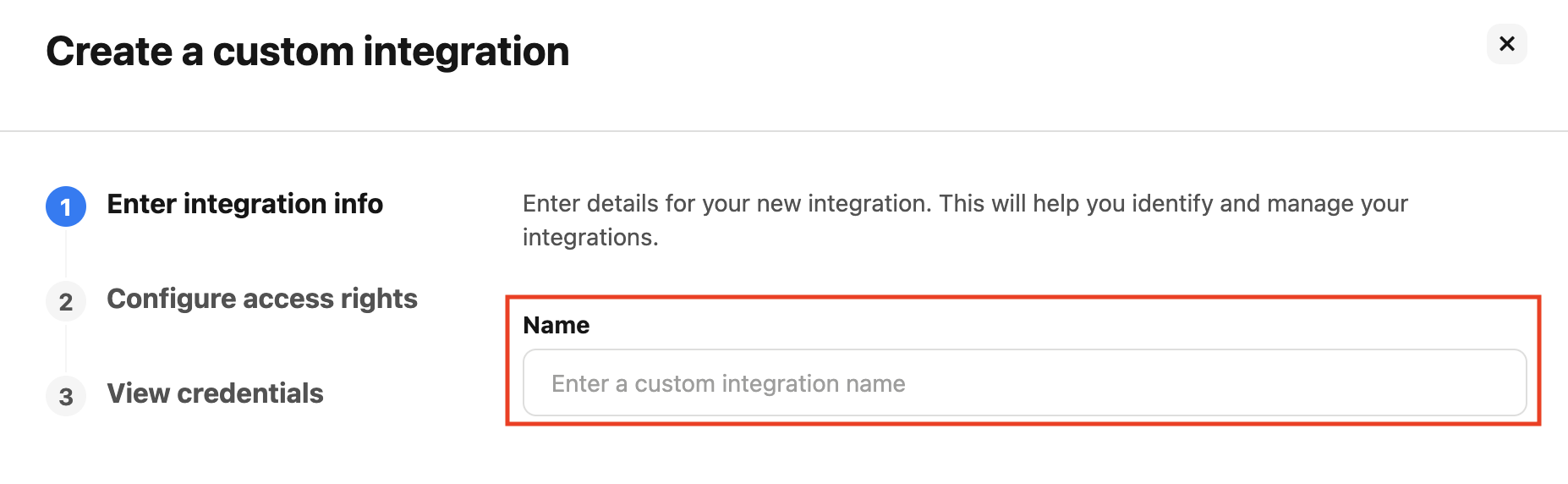
3. Add the name of the integration.
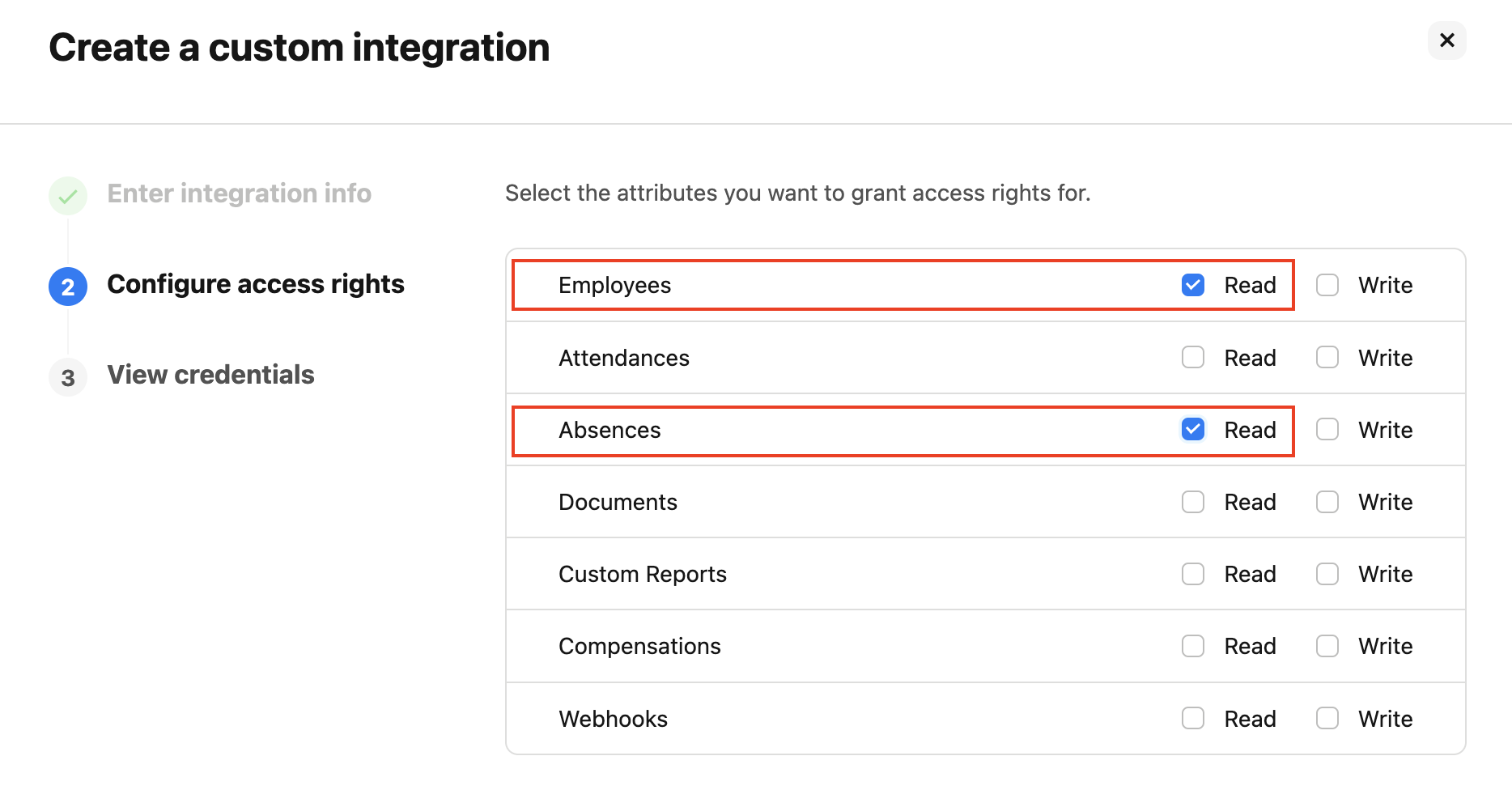
4. Select Employees and Absences attributes.
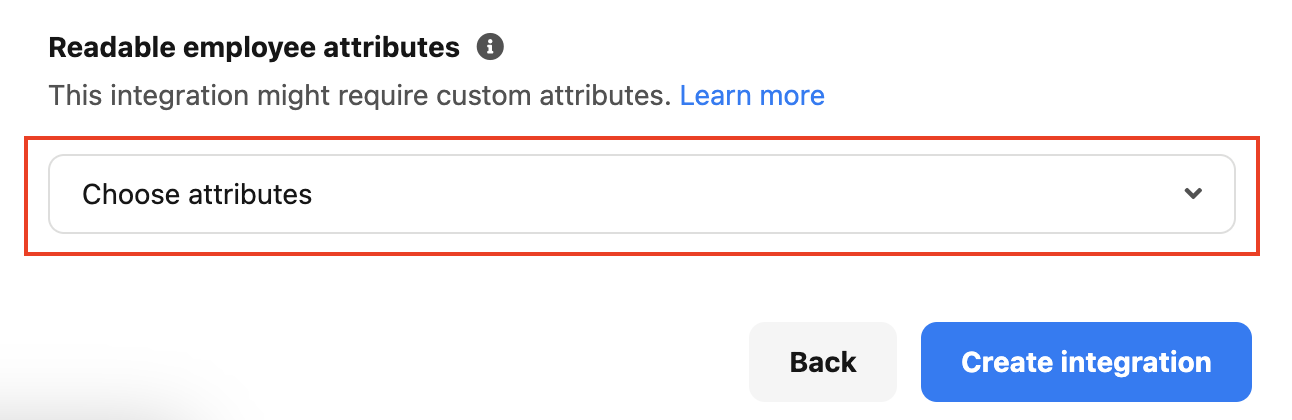
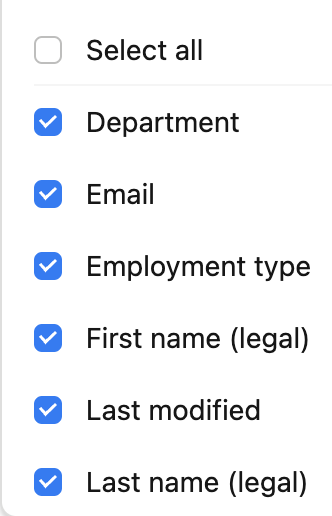
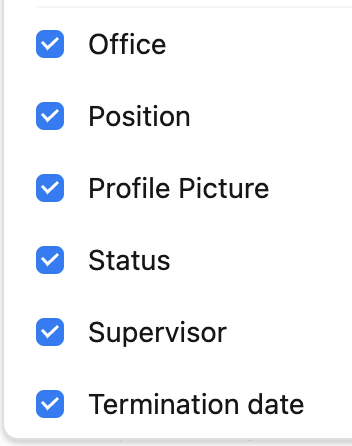
5. Select Readable employee attributes and click the “Create integration” button.
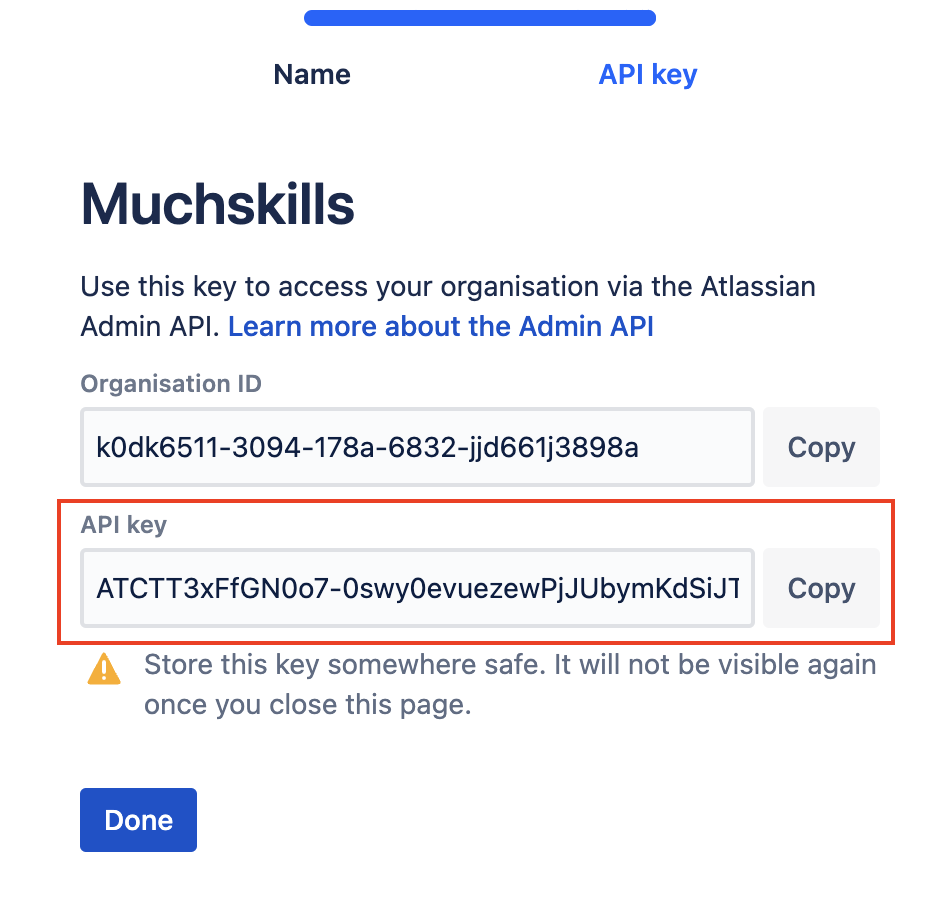
6. Copy the created client ID and API secret.
7. Open “Team Settings” in Muchskills, scroll down, and select the “Integration” option in the sidebar.
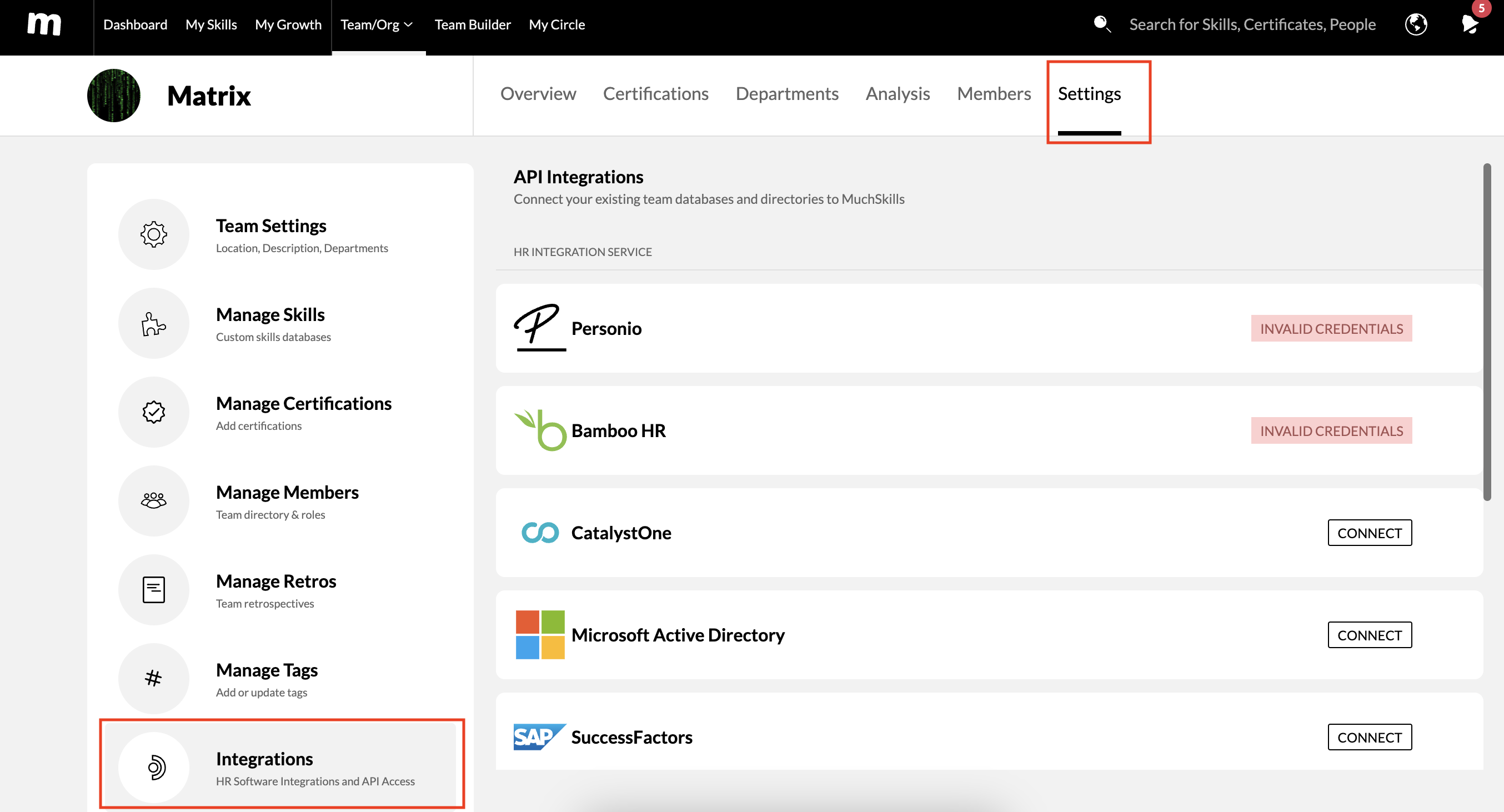
8. Select “Personio.”
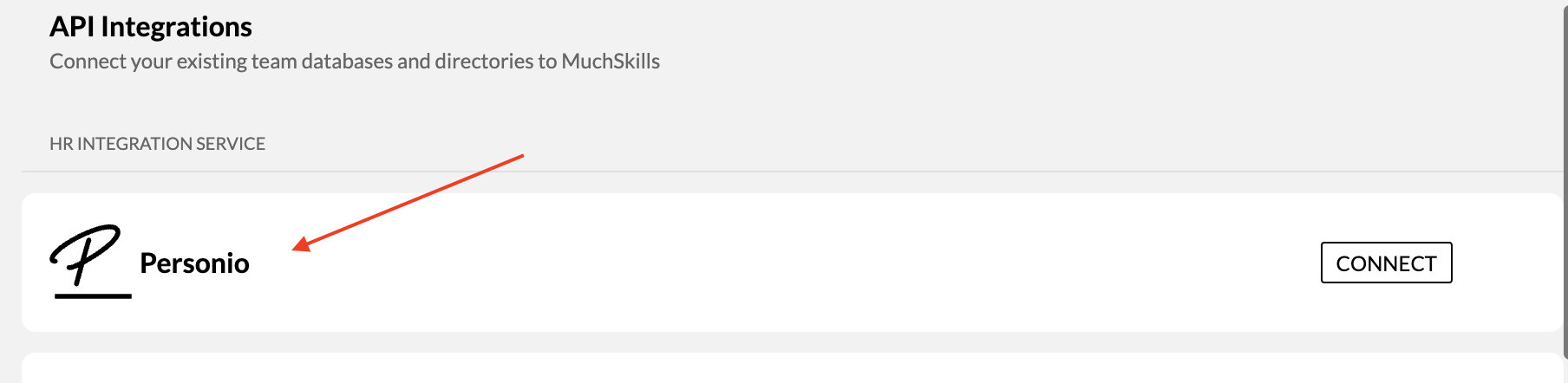
9. Add information
- Paste copied Personio Client ID
- Paste copied Personio API secret
- Click to Connect
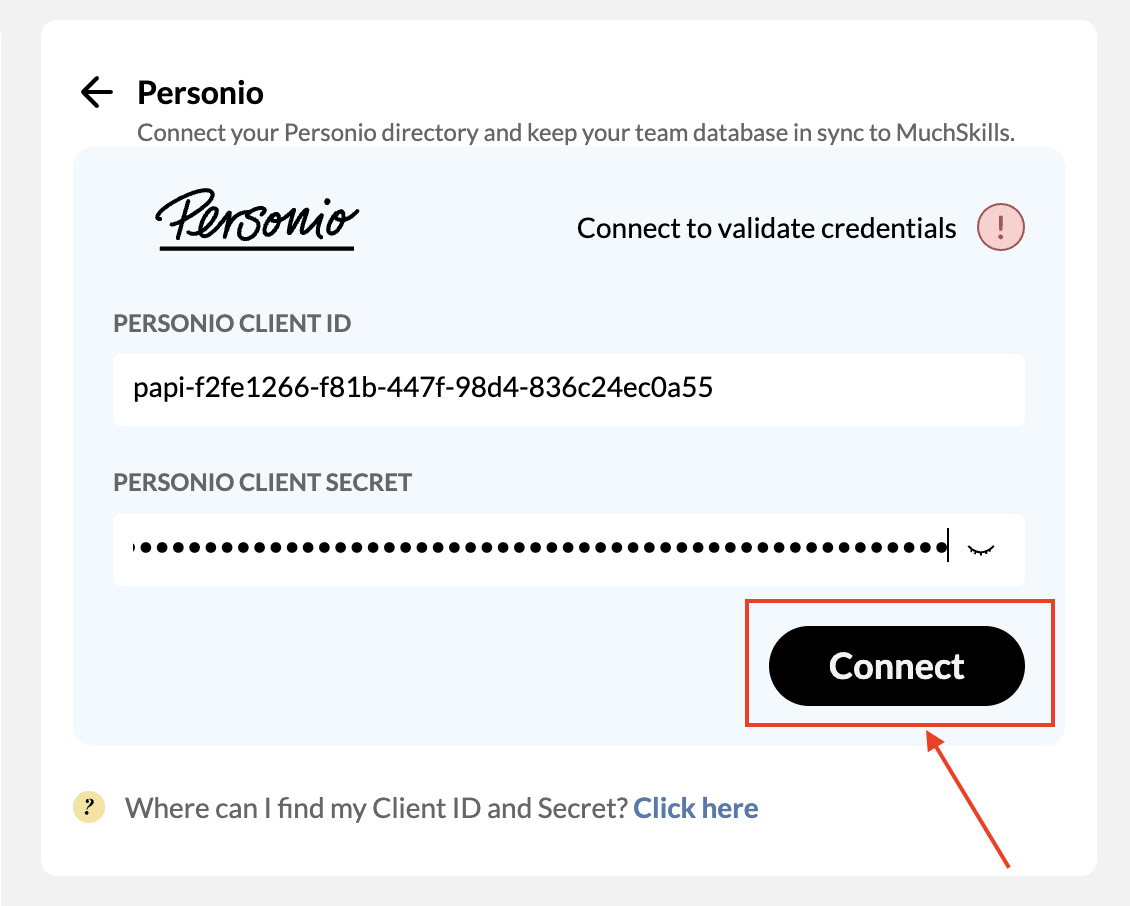
If everything goes well, you will see the success message that API connected 🙂.
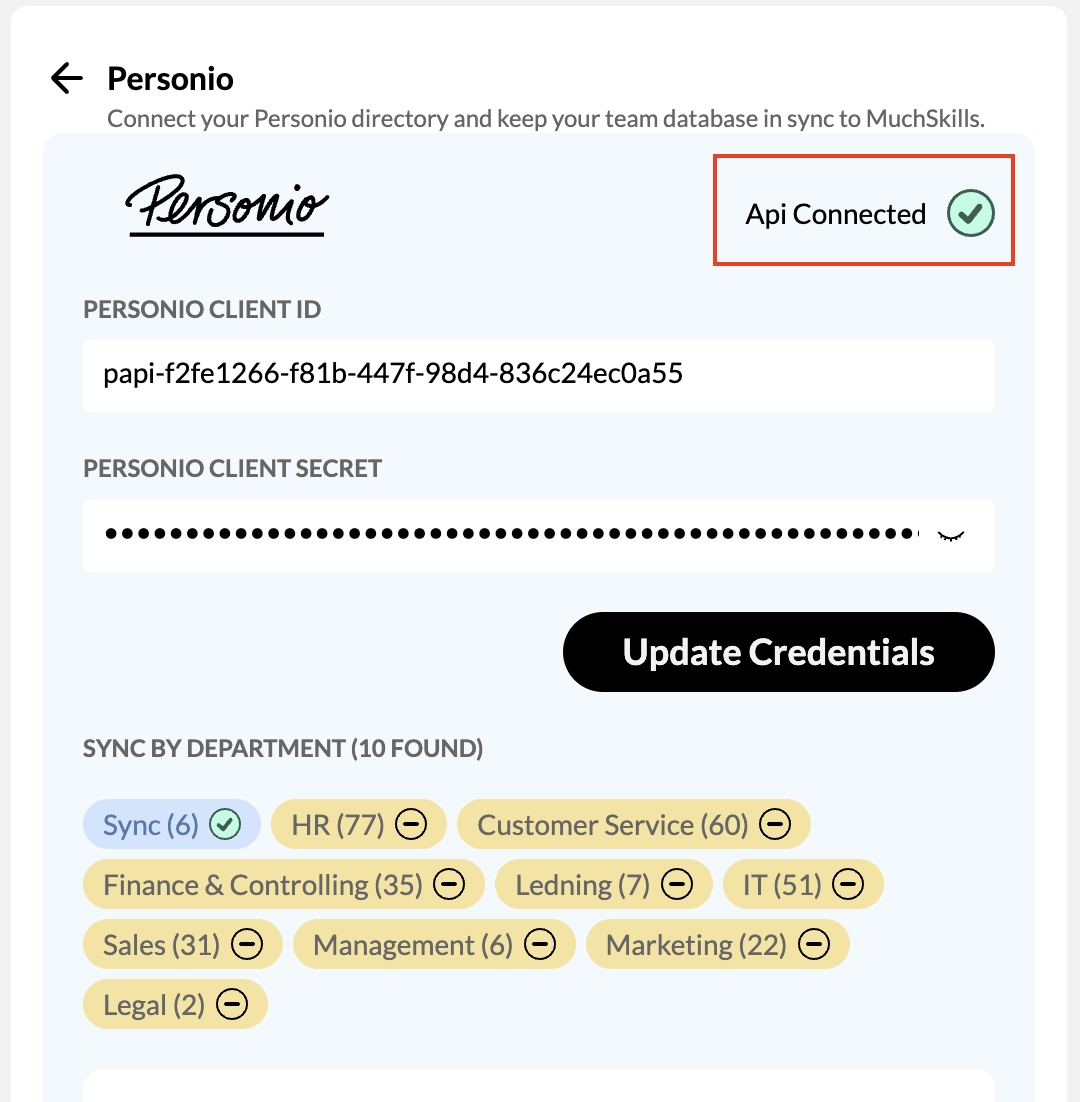
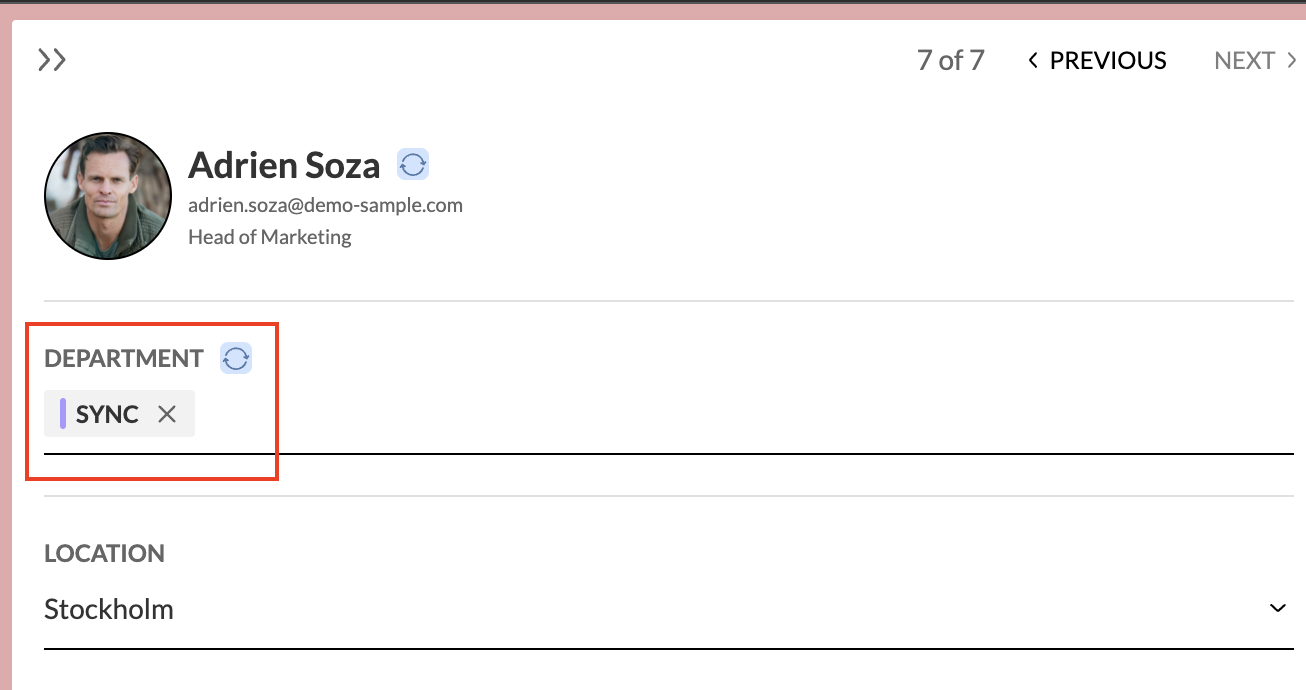
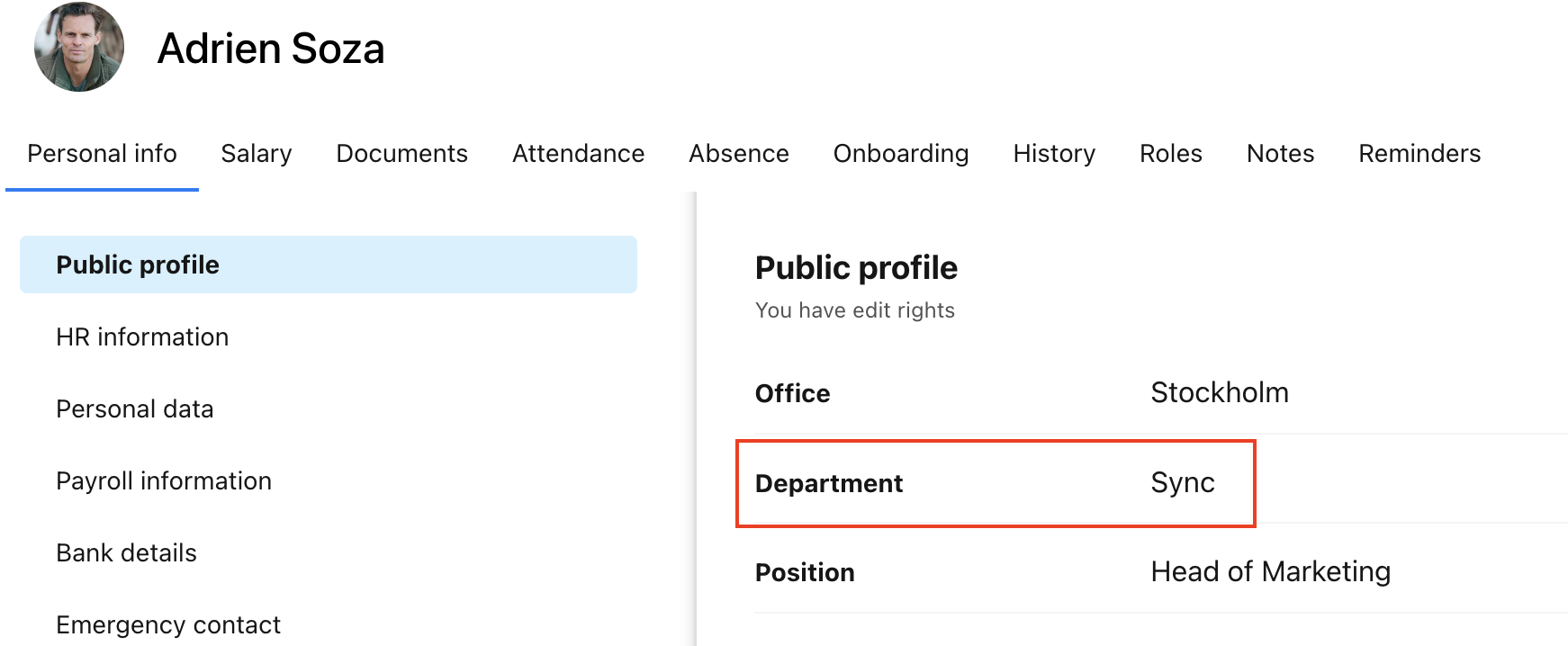
10. Make sure you selected the department you want to synchronize. Also, the members you want to synchronize should have the same selected department in both Personio and their profiles in Muchskills. You can check it here:
- On the Muchskills side, in the “Manage members” page in Settings.
- On the Personio side, in the “Public profile.”
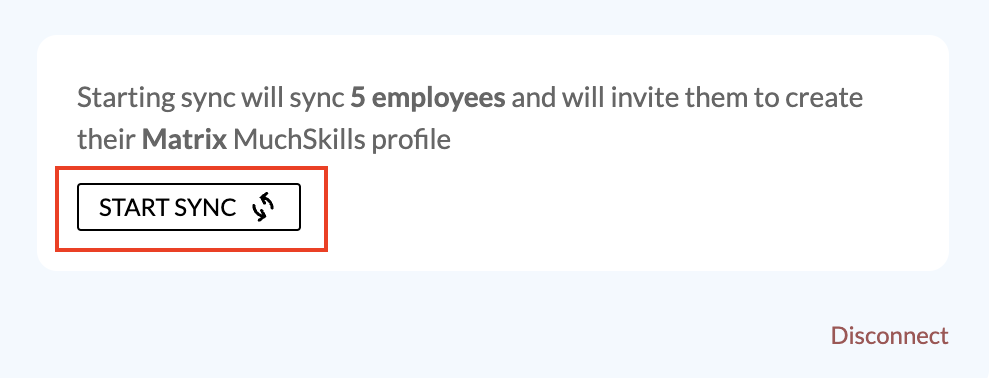
11. To start synchronizing the data between systems, click the “Start sync” button.
Done! 🙂
Benefits
Automated transfer of data
Employee master data, email, reporting structures, department and profile picture are synchronised and fully automated. Synchronisation will run frequently to ensure the data on the MuchSkills platform is up-to-date.
Import and sync employees seamlessly
Import all employees, their personal data and who they report to – in a single click. If someone joins or leaves the team in Personio, they will instantly be added or removed in MuchSkills too.
Create interactive org chart instantly
See all connections between people within the organisation in a single view. Easily search for a specific individual and understand who they report to.
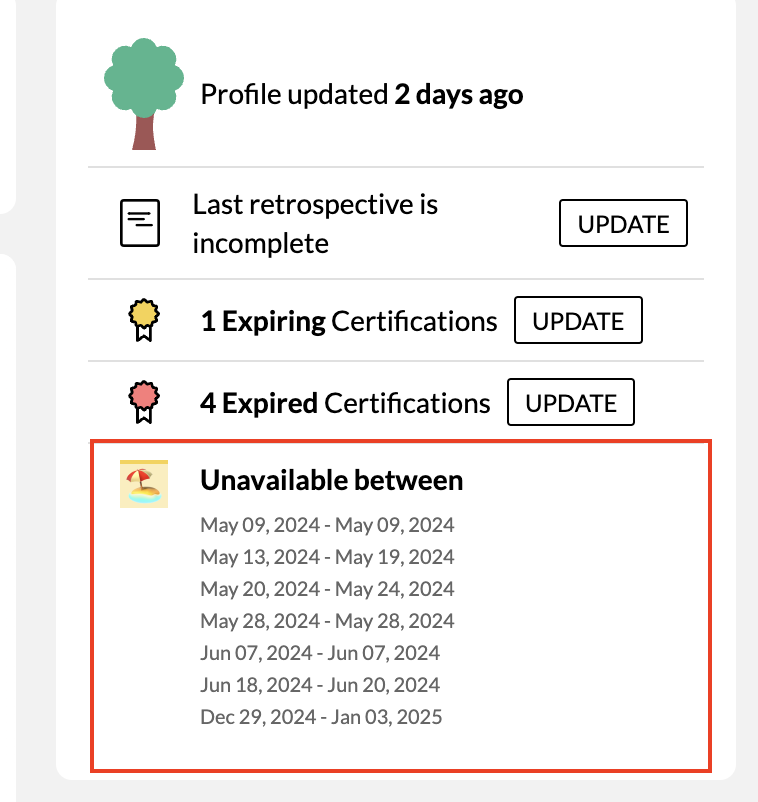
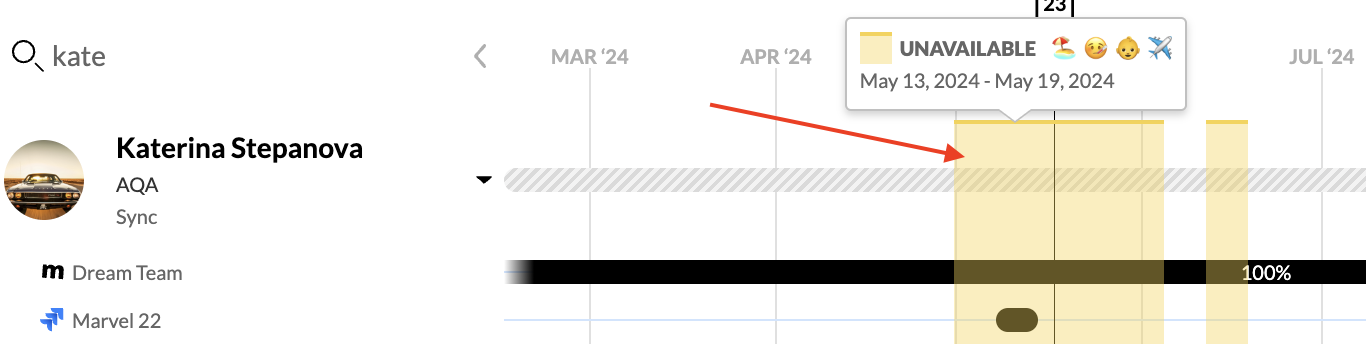
See employee absence information in MuchSkills
You can see employee absence information in:
Team Builder
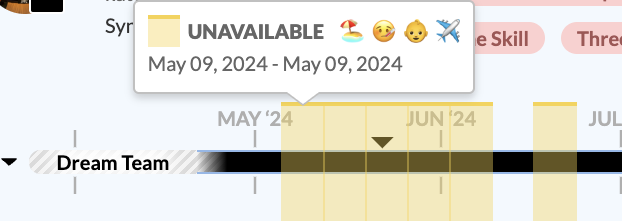
My Circle
Reports
Common errors
Invalid credentials
If you see this error:
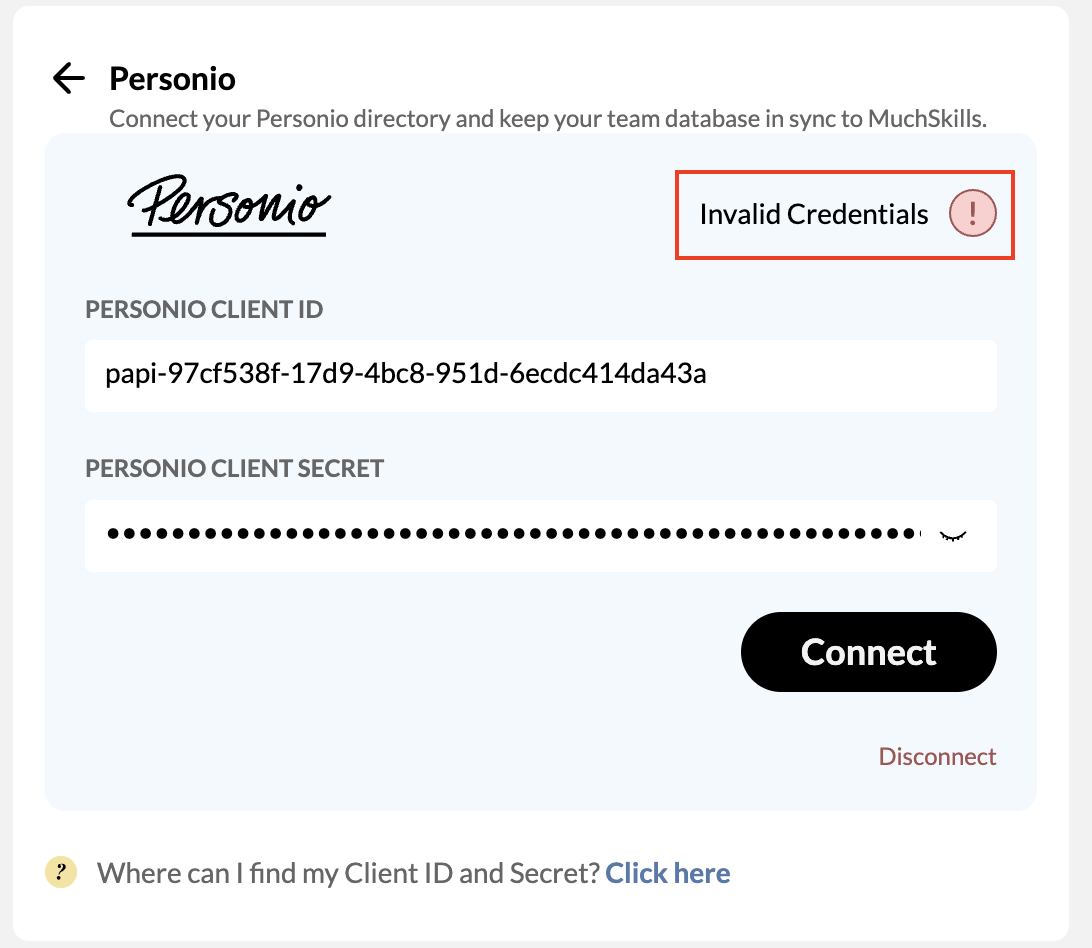
The possible reasons to the error are:
- Your API key is expired
- Invalid credentials were added for integration
- The department was renamed
If you are not able to resolve the issue please contact MuchSkills support by using the chat in the bottom right.